PG Book Studio · Overview
What PG Book Studio does
From the book plan to the manuscript, style, review, cover and Word file — you move from step to step with the menu buttons at the top of the screen.
Contents — Six steps · 1. Plan · 2. Sources · 3. Write · 4. Style · 5. Review · 6. Finish · The writing process and skills
Six steps to write a book
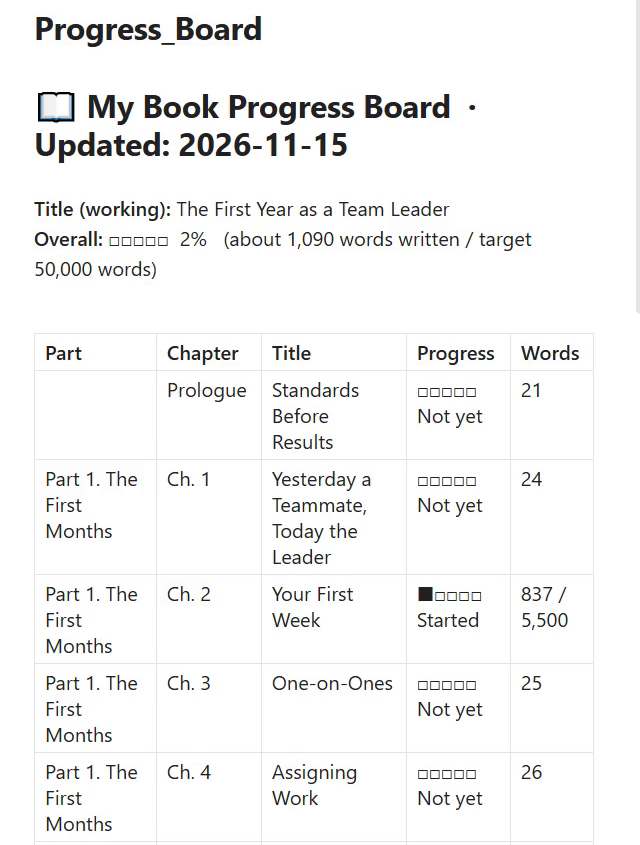
The pictures on this page were taken while writing a fictional sample book, The First Year as a Team Leader, with PG Book Studio.
1Plan
Tools: Book Plan Setup, Schedule
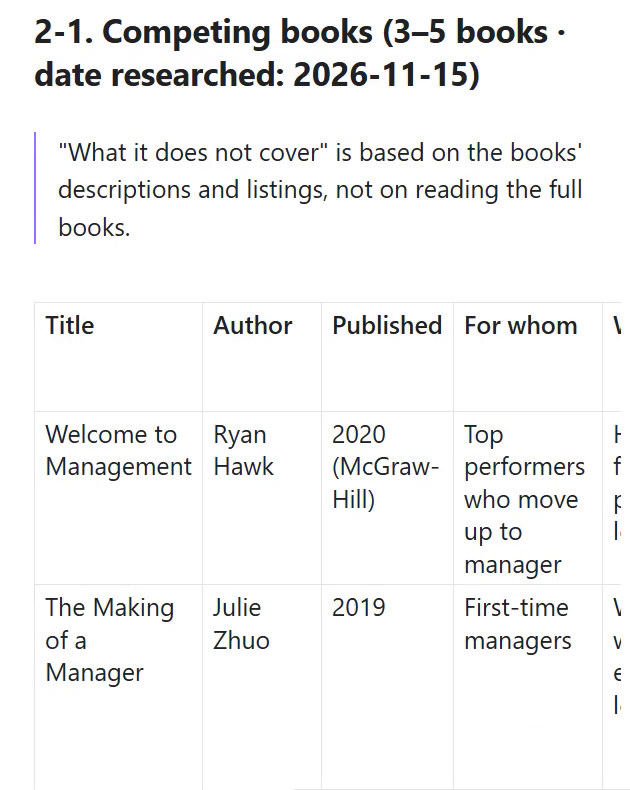
- You write your book plan in your first conversation with PG Book Studio. The AI finds competing books already on the shelves, shows them in a table, and refines the plan with you.
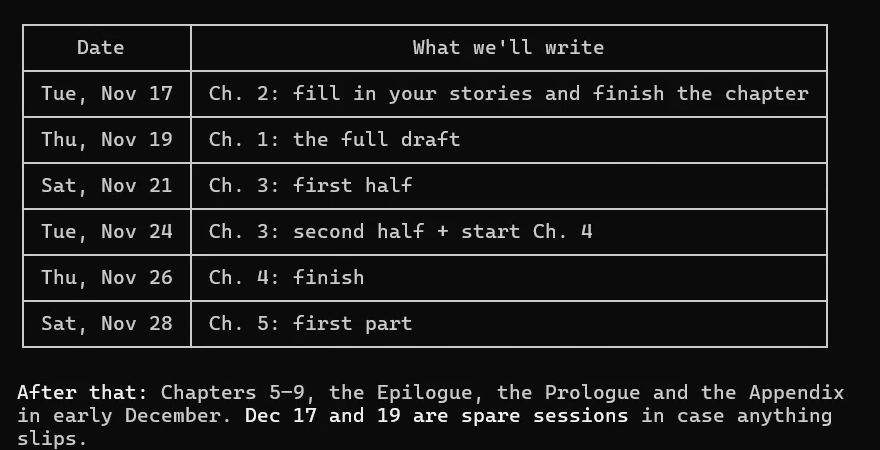
- Schedule — Works back from the day you want to finish and drafts a writing timetable.
2Sources
Tools: Sources, Citations
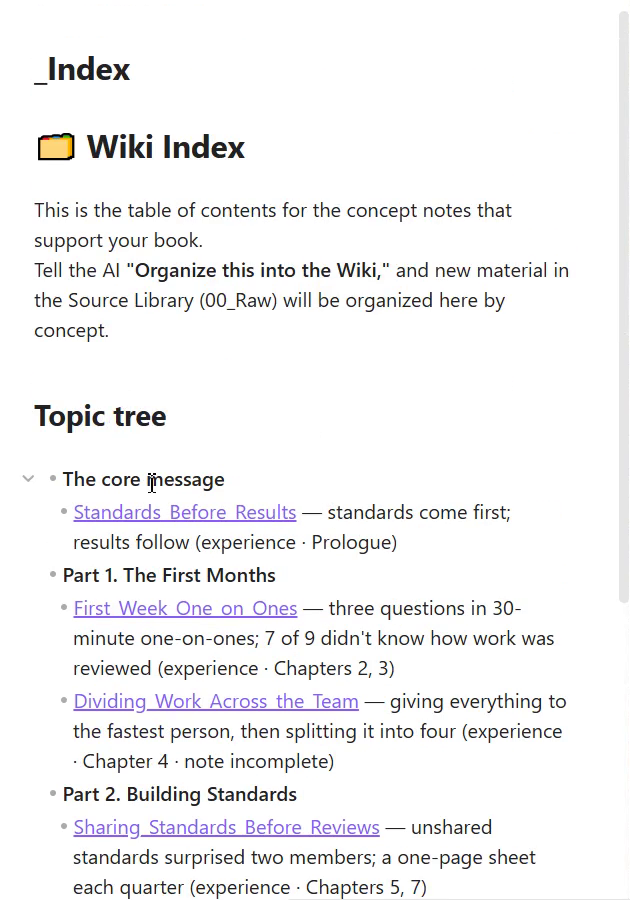
- Sources — Matches your collected sources against each chapter in your outline and shows which chapters need more material.
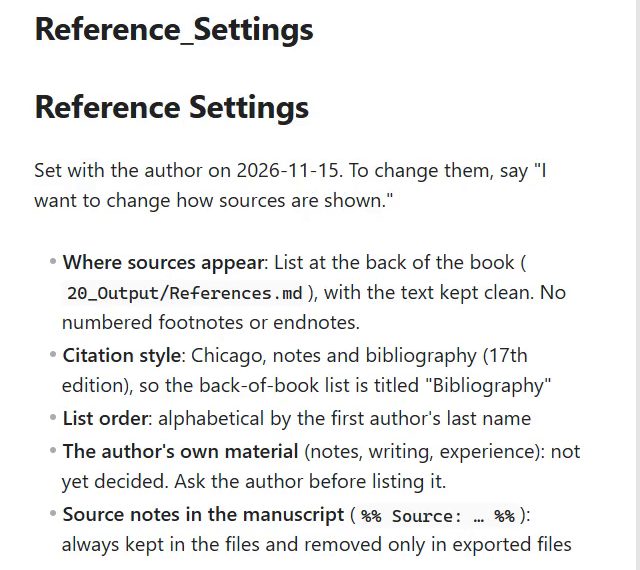
- Citations — Sets with you how sources are shown, turns your quotations into a reference list and finds places where a source is missing.
3Write
Tools: Write, Images, Mobile
- Write — Keeps drafting your manuscript from the sources you have gathered.
- Voice typing — Type by speaking instead of using the keyboard.
- Images — Agrees one art style for the whole book, marks where pictures should go and places the pictures you add in the right spot in the text.
- Mobile — Keep writing and editing your manuscript in the Claude app on your phone or tablet (Claude Code version only).
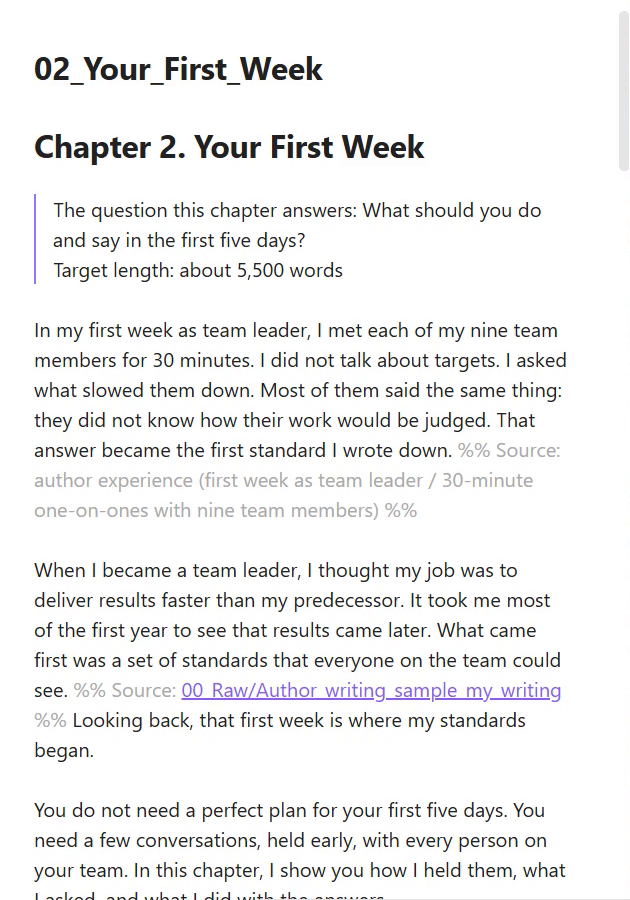
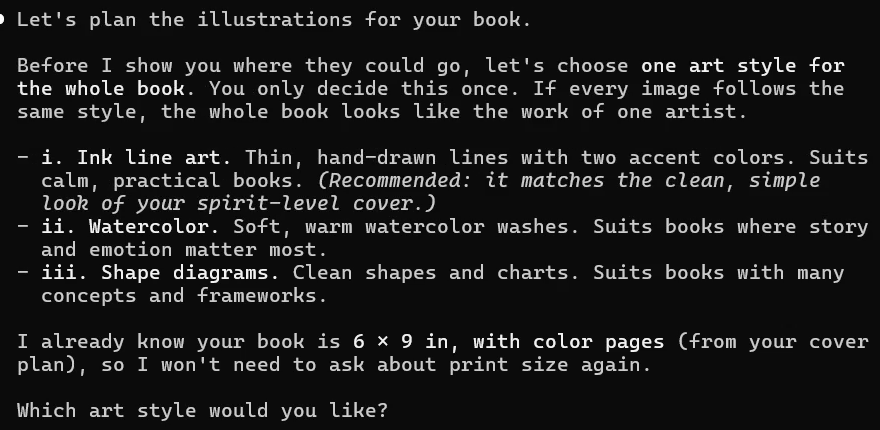
4Style
Tools: Style
- Style — Shows ready-made writing styles applied to the same sample passage, and the style you choose becomes the standard for your manuscript.
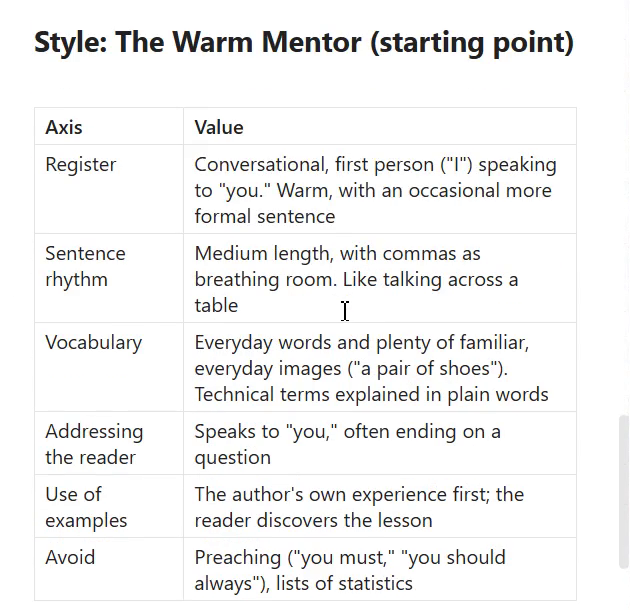
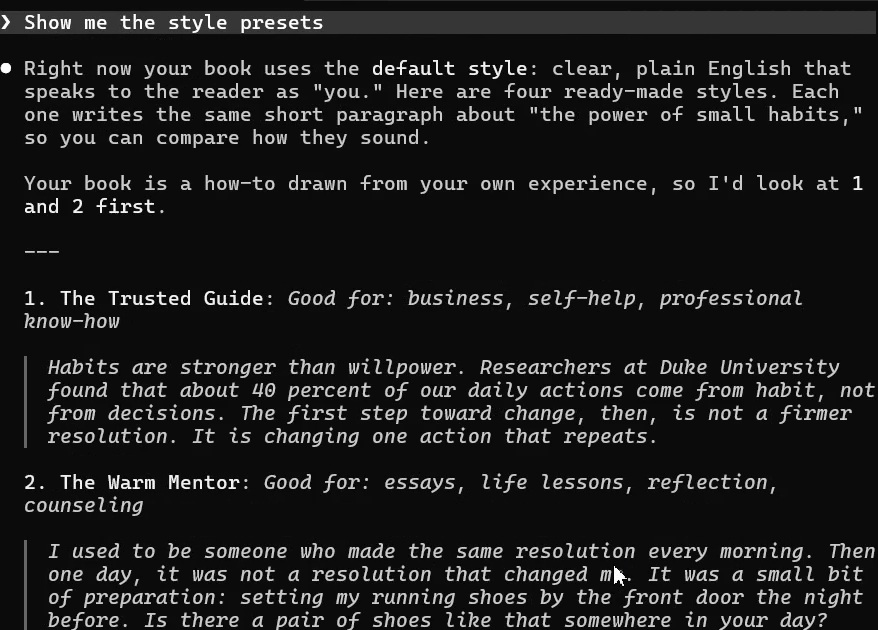
5Review
Tools: Deep Think, Progress
- Deep Think — Steps back and looks again at what you have written, from the book plan to the manuscript.
- It points out where sections of your plan contradict each other, and where sources are thin or overlap compared with your outline.
- For the manuscript, it shows you one revised version.
- The revised text is saved as a new file next to the original. Your original stays as it is, and you choose which one to use.
- Progress — Compares your writing with the outline and shows how far you have got in each chapter, with a progress bar and word count.
6Finish
Tools: Preview, Cover, Export, Studio
- Preview — Shows your scattered chapters as one book with a cover and a table of contents.
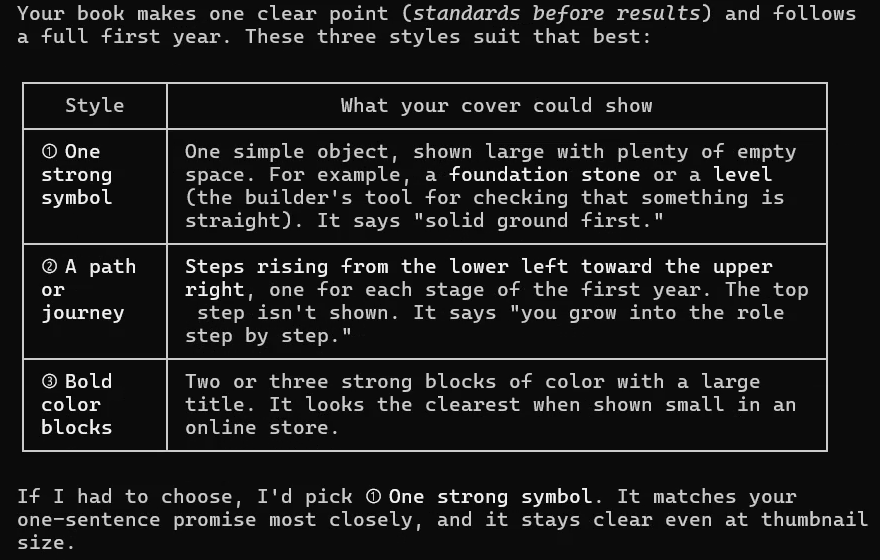
- Cover — Asks for the trim size and page count, works out the spine width, and drafts a cover plan.
- Export — Turns your manuscript into a Word file or an ebook file.
- Studio — Turns your manuscript into blog and social media posts and presentation materials.

The writing process and skills
Your workspace comes with skills that help you at every stage of writing.
Experience and know-how scattered in your head
→
A book-length manuscript in your own style
AI that forgets when you close the chat
→
A writing workspace where your plan, sources and style are kept as files
Writing that turns into manual work halfway through
→
Writing where you hand off combining chapters and tidying sources to the menu buttons
Not knowing what to do after the manuscript
→
Ready to publish, with a proposal, book-talk slides and a promotion plan