Get PG Book Studio Free edition
Fill in the form and we'll email you the download link.
Go to the form ↓Before you start
- Windows 10 or 11 only. Mac isn't supported yet. You need an internet connection to install the app.
- A paid Claude or ChatGPT plan — choose the Claude Code version if you use Claude, or the Codex version if you use ChatGPT.
Claude Code version: Requires a paid Claude plan (Pro or higher). It's billed by Anthropic and isn't included.
Codex version: Requires a paid ChatGPT plan (Plus or higher). It's billed by OpenAI and isn't included. - Installing takes about 5 to 20 minutes.
- You need administrator rights to install the app. On a work PC, ask your IT team.
We have tested the install on standard Windows 10 and 11 setups. Antivirus software or a company's security policy may block it on some PCs, and we can't guarantee the install will work on every PC.
Sign-up form
Fill in the form, and we'll send the download link to your email.
Install in three steps
1Sign up
Fill in the sign-up form above and send it.
2Download and install
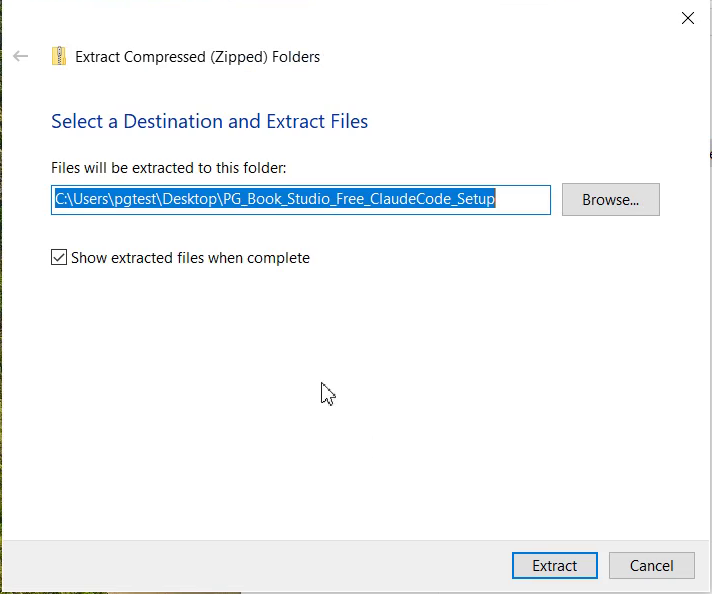
Download the ZIP file from the link in your email ("PG_Book_Studio_Free_ClaudeCode_Setup.zip" or "PG_Book_Studio_Free_Codex_Setup.zip"). Right-click it and choose "Extract All". In the extracted folder, double-click the file with the same name that ends in ".bat".
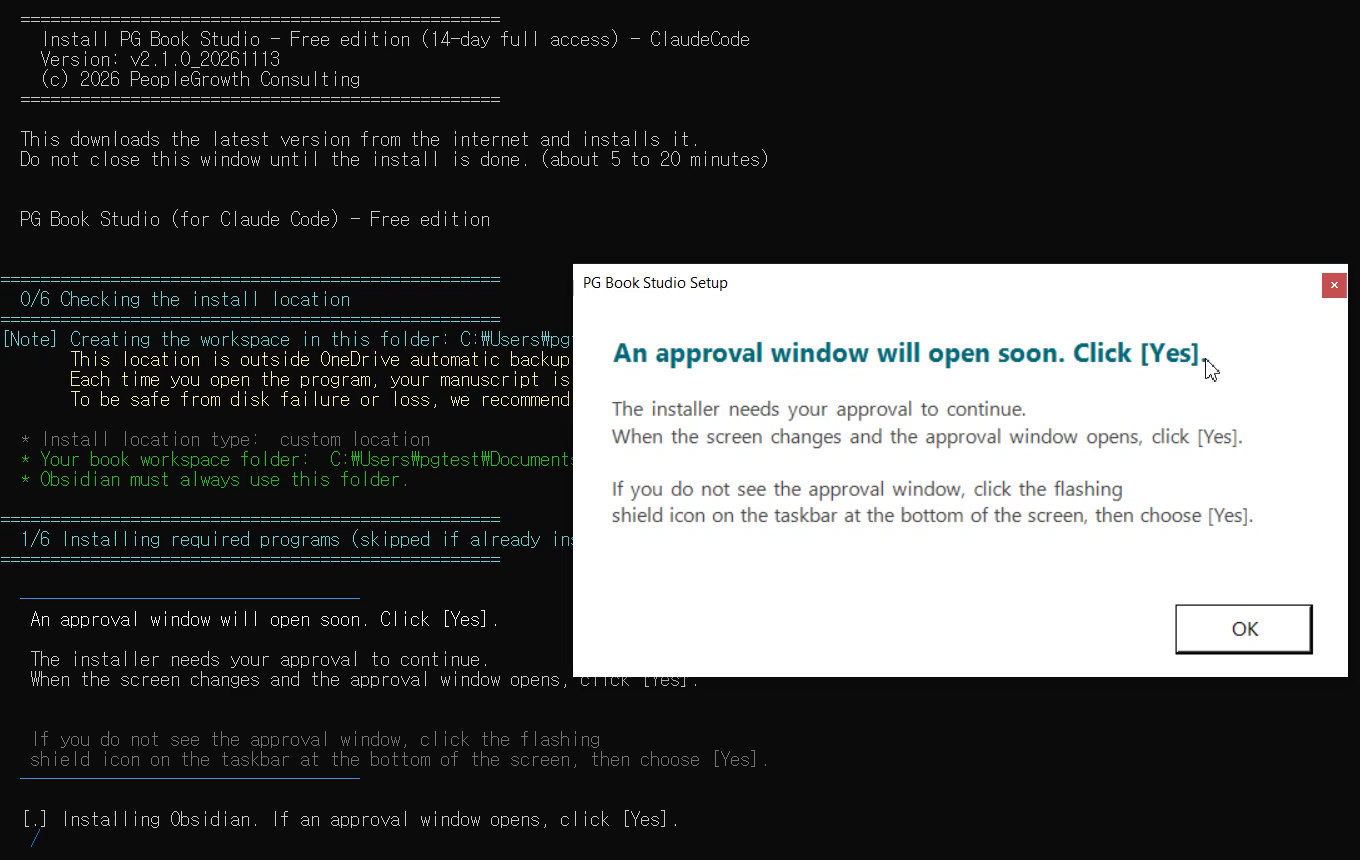
A black install window opens and downloads PG Book Studio. Leave it open and wait (about 5 to 20 minutes, longer on some PCs). If an approval window opens, click Yes.
- Windows may show the message "Windows protected your PC" when you open the installer.
- This is common with many small programs downloaded from the internet.
- Click "More info", then "Run anyway".
3Desktop icon
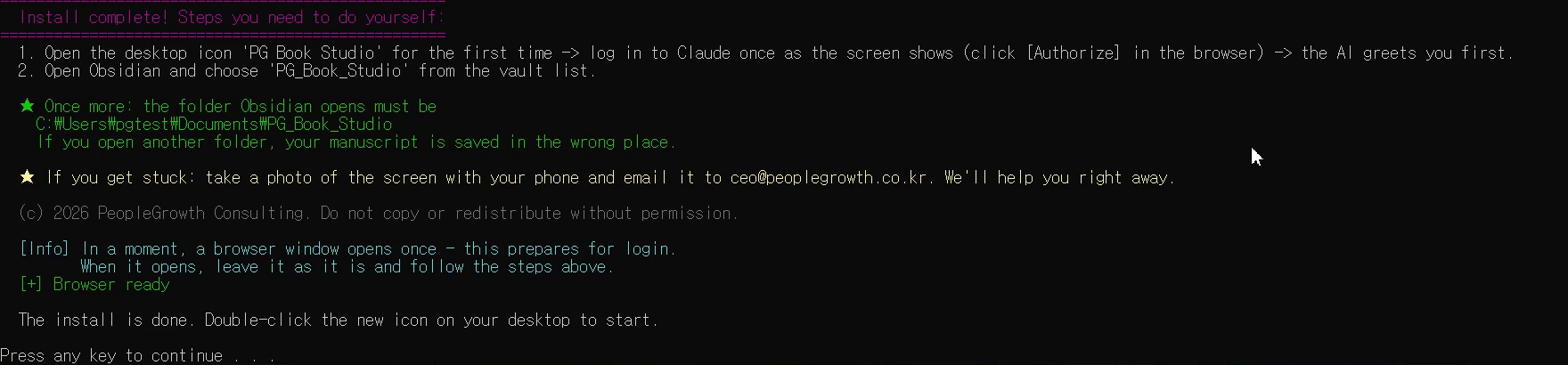
When you see "The install is done.", double-click the "PG Book Claude" or "PG Book Codex" icon on your desktop, depending on your version. Two windows open after a few seconds.
Sign in once as the screen tells you, and the AI greets you first. If nothing happens, type "Let's start".
Install videos
The real screens of the install. Watch the video for the AI you use.
Claude Code version
Codex version
If the install stops
- Shield icon — Click the flashing shield icon on the taskbar and approve.
- Diagnostics — Codex version only. If the install doesn't work, open the Diagnostics folder in the extracted folder and double-click "Start_Diagnostics.bat". For the Claude Code version, email us as below.
- First option — When you sign in, the black window shows three options. Use the arrow keys to pick the first one and press Enter. Don't pick the second one; it is billed separately.
- Authorize — A browser window opens. After you sign in to your account, click Authorize. If it appears again, click it again.
- Codex permission window — Codex version only. When Codex starts its first task, Windows asks once more, "Do you want to allow this app to make changes to your device?" (codex-windows-sandbox-setup.exe · OpenAI). Click Yes to continue.
- Blue warning window — Click "More info", then "Run anyway". If another window appears, click Yes.
If the install stops, take a screenshot (or a phone photo) of the screen and email it to ceo@peoplegrowth.co.kr. If you can, attach this file too: %TEMP%\pg2_install.log (paste %TEMP% into the File Explorer address bar to open the folder).